 Coral Travel Document No:
 - Homepage/
- How to book online/
- Buy a tour online: step-by-step instructions
Buy a tour online: step-by-step instructions
The site works 24/7 to allow you to find and book a vacation at a time and place convenient for you.
To make searching and booking a trip as simple as possible, use the following recommendations:
STEP 1
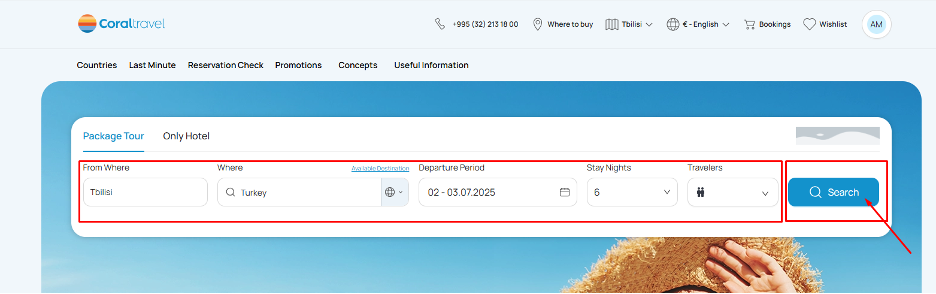
Go to https://coral.ge, fill in the mandatory fields for tour selection and click on the "Search" button:
STEP 2
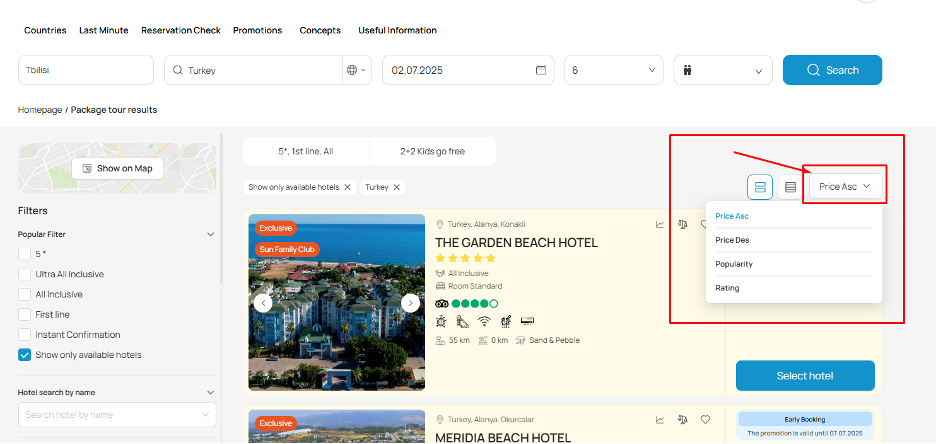
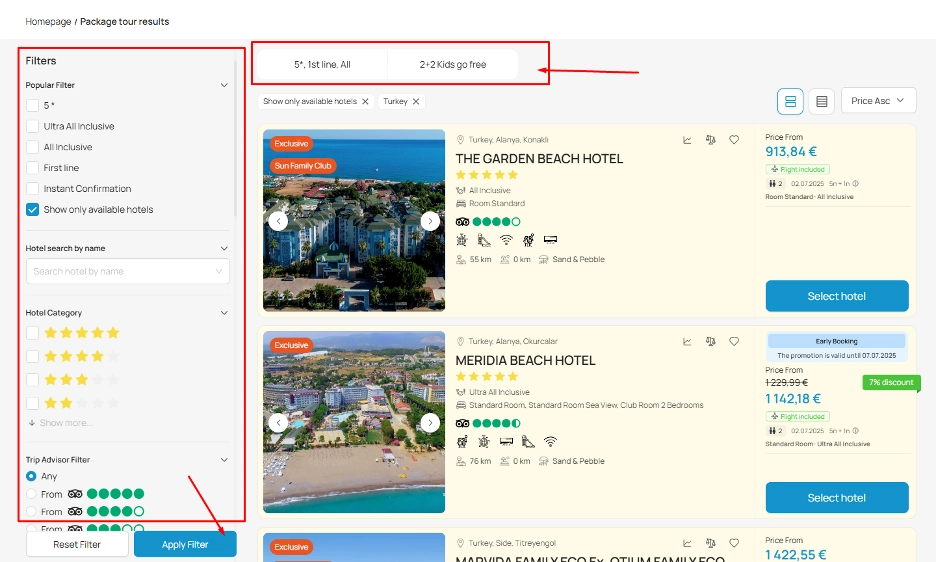
In the search results, use filters:
- Recommended hotels;
- Hotel Category;
- Meal type;
- Best Traveler Reviews (hotels with the best reviews on Tripadvisor).
STEP 3
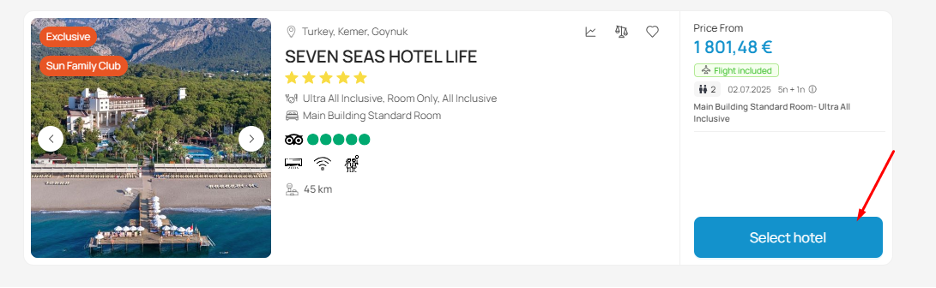
To view the details of the selected hotel, click "Select Hotel" button.
STEP 4
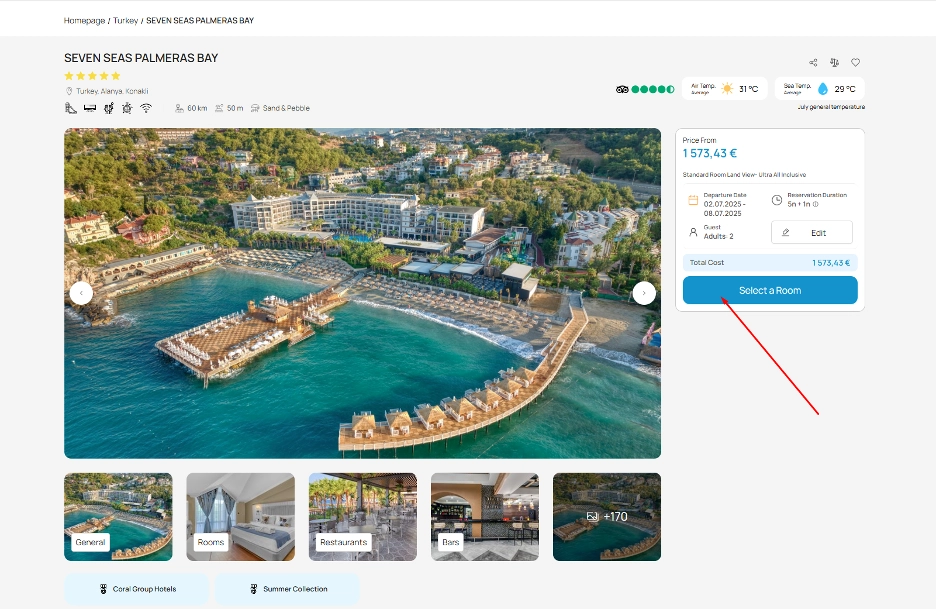
Click on the "Select Room" button on the selected hotel page to proceed with your reservation.
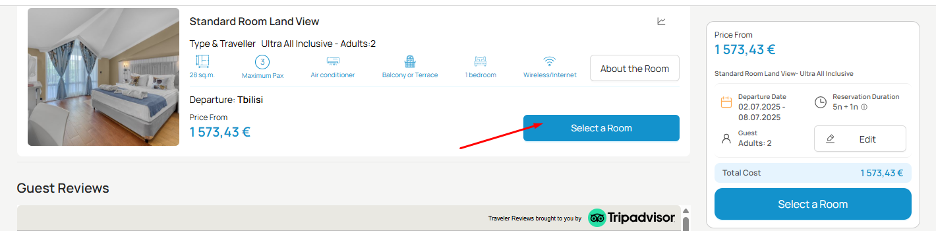
Review the hotel room types available for booking, prices, description and photos, etc. and click the "Select Room" button again next to the room category you are interested in.
STEP 5
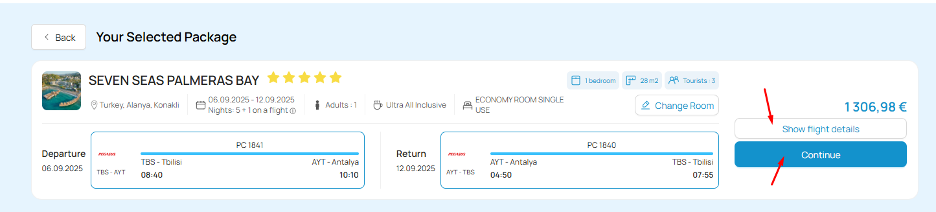
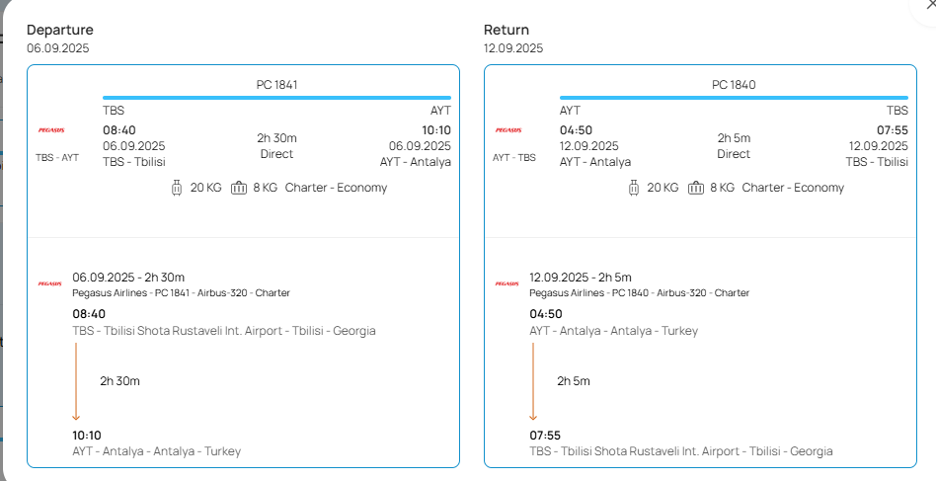
After selecting the room category - you will be transferred to the page with information about the flight details: airline name and flight number, departure and return times, duration of the flight, baggage and hand luggage allowance.
Please note that departure times are subject to change. You should check the departure time in advance on the official website of the airline.
Click on the "Show flight details" button to view the details of the flight program.
Click the "Continue" button to proceed to the next step of the booking process.
STEP 6
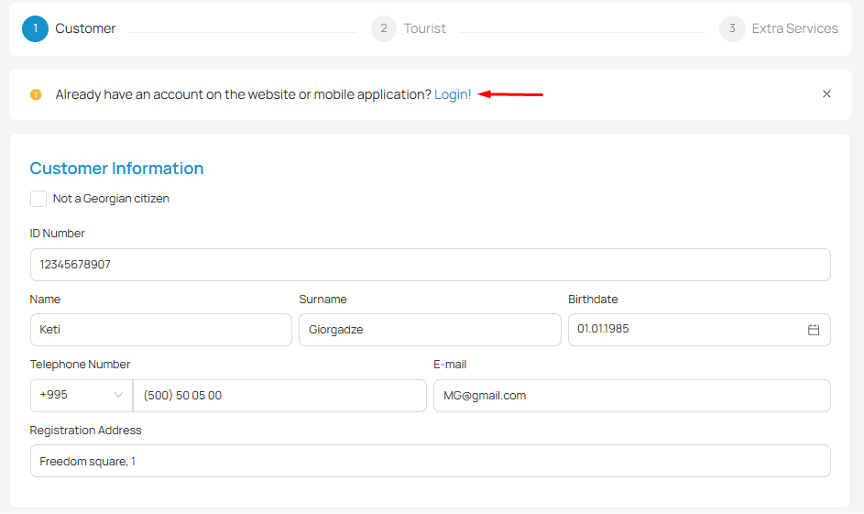
To authorize (if you have previously registered on https://coral.ge) do the following:
- Enter your login (email).
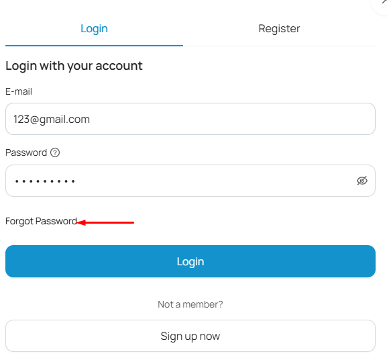
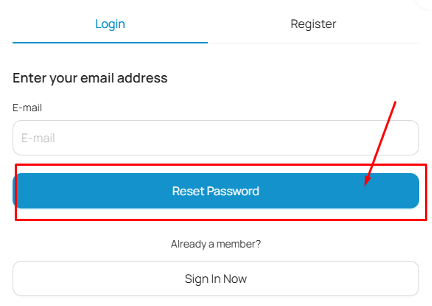
- Enter your password (if you have forgotten your password, use the “Forgot Password” function and specify the email to which you want to send a link to change your password).
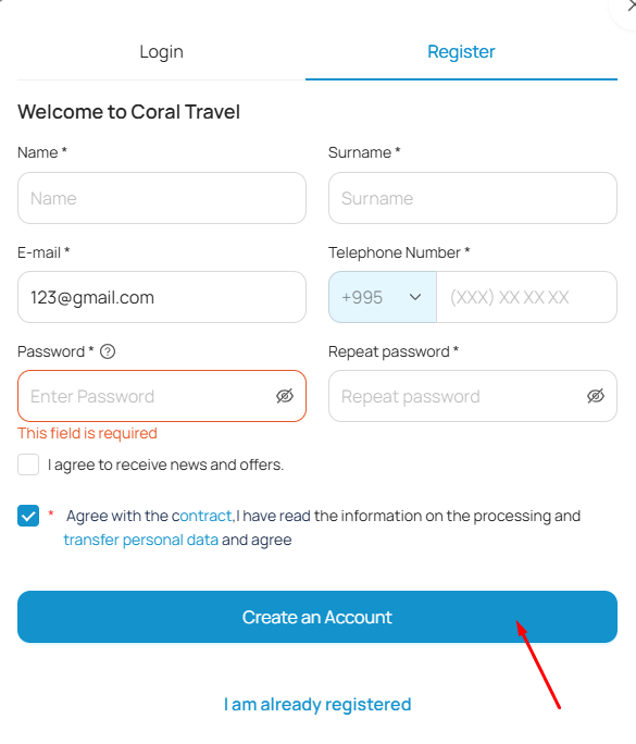
The registration process (if you have not registered on https://coral.ge website before) is as follows:
- Fill out the registration form: first name, last name, email, phone number.
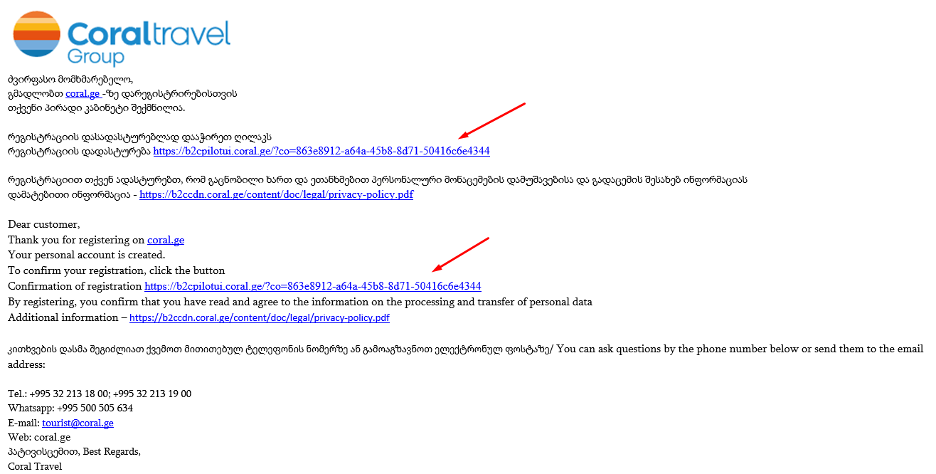
- You will receive an email with information about creating a personal account on https://coral.ge (if the email is not in your inbox, please check your spam folder).
- Complete the registration process and activate your personal account by clicking the "Confirm Registration" button (do it within 10 - 30 minutes after receiving the letter, otherwise the activation code will not be active and the registration process will have to be repeated again).
- Create a password and repeat it (the password must be at least 8 characters long, contain an uppercase letter, a number and a symbol).
Authorization button on the https://coral.ge website:
The registration form on the https://coral.ge website looks like this:
You will receive a notification email to your email, in which you need to click the «Confirm Registration» button. If the message is not in your inbox, please check your spam folder.
If you don't remember your password (or don't remember if you have registered on the site before), click the "Forgot Password" button.
STEP 7
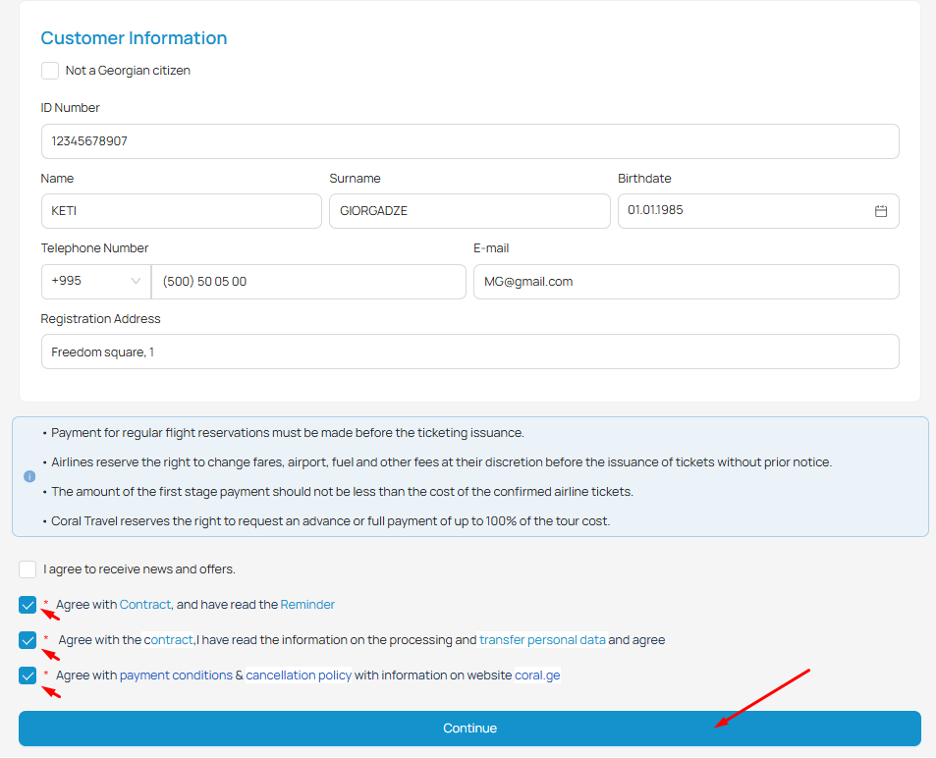
1st step of booking a tour:
- Fill in the information about the tour customer.
- Read the important notes to the booking (services added to the booking automatically can be deleted at the last step of booking).
- Check the mandatory fields with "ticks", these are important conditions for booking tours on https://coral.ge website, specifically: terms and conditions of the contract-offer for tourist services, consent to the processing of personal data and creation of a personal account on https://coral.ge website.
STEP 8
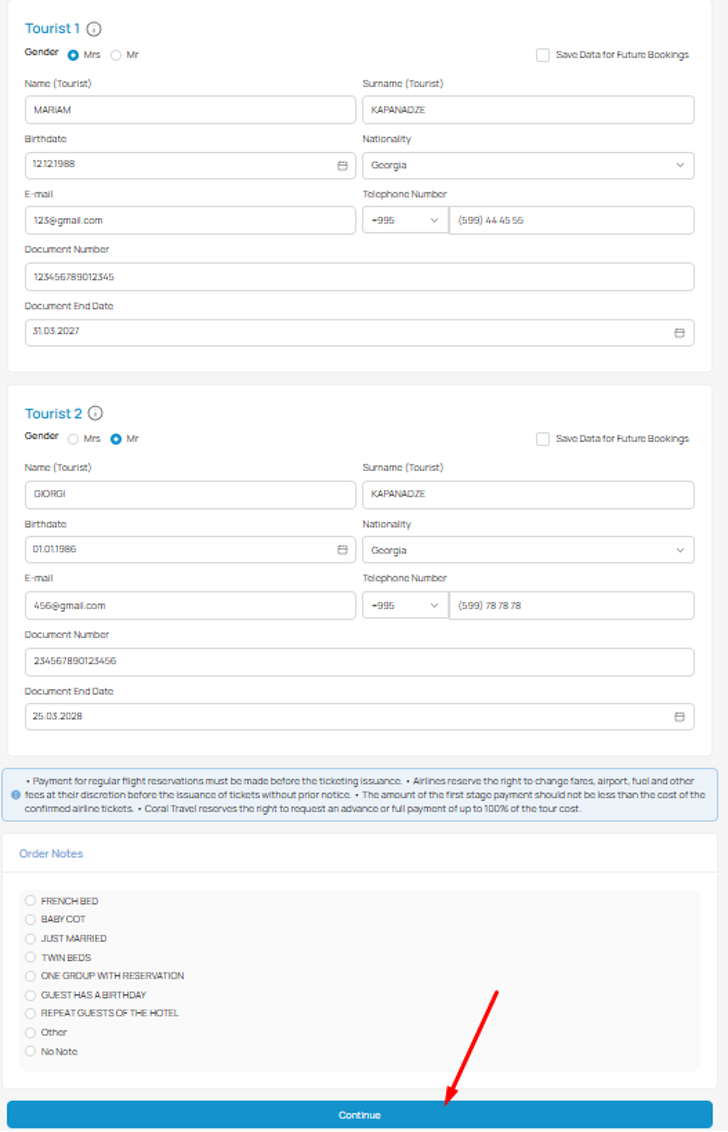
Step 2 of the tour booking: fill in the passport details of the tourists:
If passport is inaccessible, enter them as you remember and write a comment before booking that correct passport details will be provided later. Our managers will help to correct passport details after the booking has been created. Pay attention to the expiration date of passports!
- Enter the data of travelers' passports.
- Read important notes to the booking.
- Add notes.
STEP 9
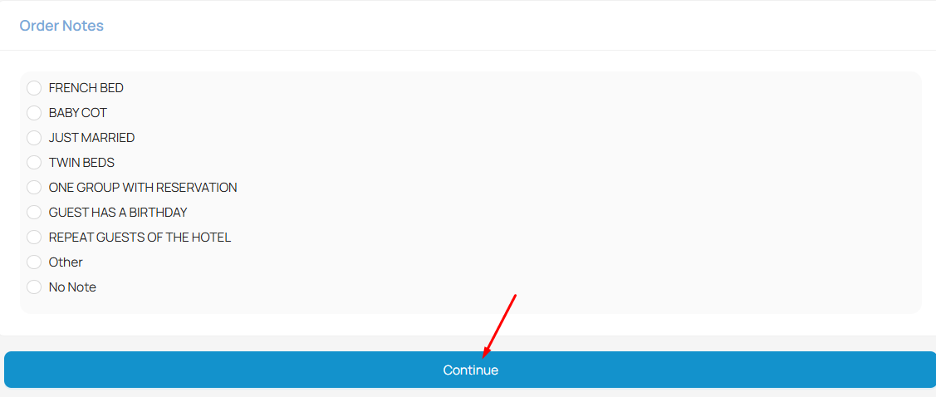
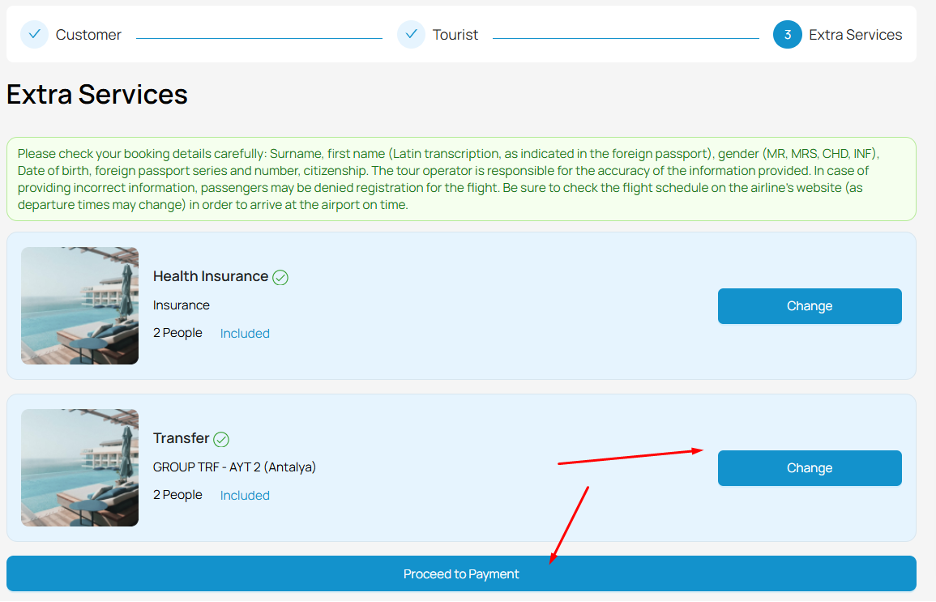
Step 3 of booking a tour: include additional services in your booking or remove services that were added automatically from your booking.
You can add additional services to your booking: personalized transfer, extended type of insurance, flowers, arrival airport pickup, etc.
The cost of services is displayed when you add them to your booking.
To confirm your booking - click "Book Tour" button.
STEP 10
Step 4 of booking a tour: select a payment method:
- By card online (credit card - button "Payment").
- Payment to company details (download invoice for payment - button "Invoice for payment").
Payment can be made later (after the booking has been created), but within the terms stipulated in the confirmation letter that will be sent to your email after the booking has been confirmed.
If you have a promo code, adjust the price and click the "Payment" button.
The cost of the tourist service is paid in equivalent GEL on the day of payment, in accordance with the commercial exchange rate indicated on the website of "CORAL TRAVEL" LLC.
On the tour payment page you can use the following functions:
- Select the online payment percentage.
- Add a promo code (enter the promo code and click "Done").
- Pay by card online (click the "Pay" button).
- To go to the page where you can download an invoice for payment to the company details, click on the "Invoice for payment" button.
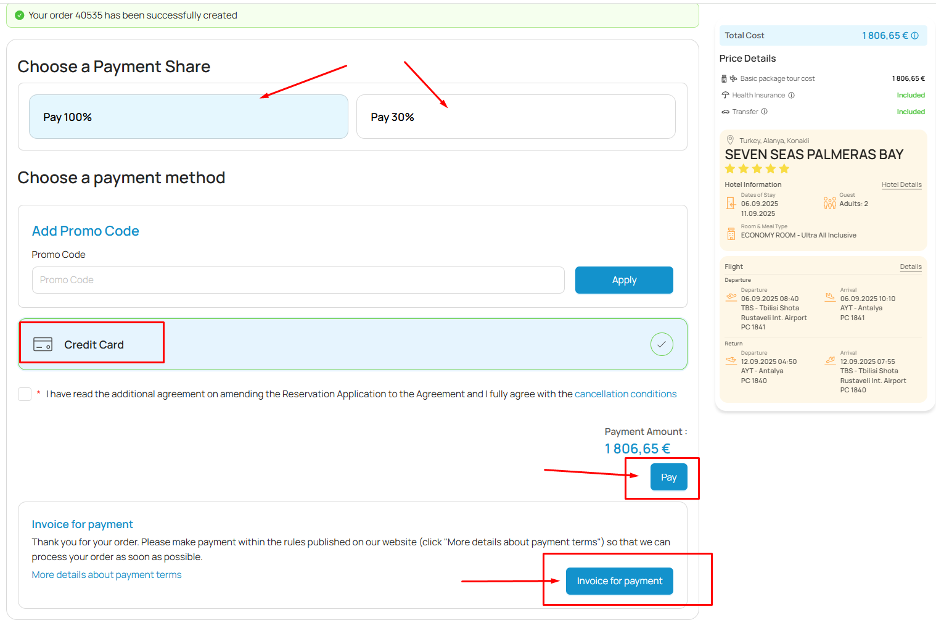
To upload an invoice to the company details - click on the "Invoice for payment" button.
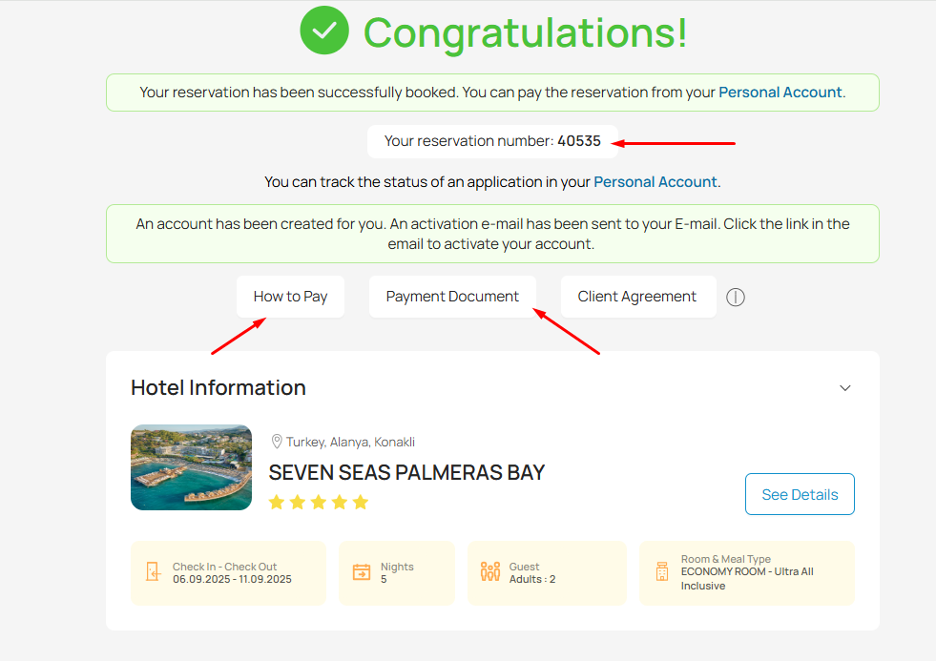
STEP 11
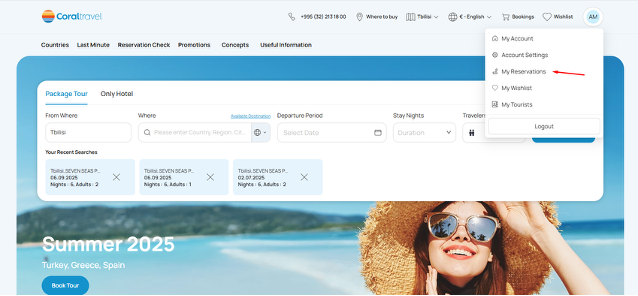
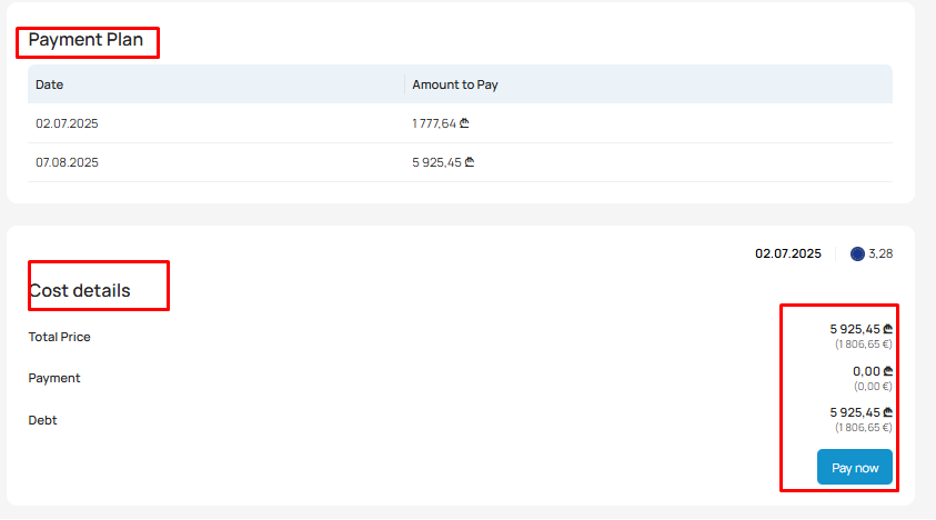
To check your reservation before paying, go to your personal account on https://coral.ge.
Open the "My bookings" section of the menu and use the options:
- Checking your reservation.
- Payment of the reservation.
- Download travel documents and travel service agreement.
- Log in to your personal account on the coral.ge website.
Click "More Details" to view order details.
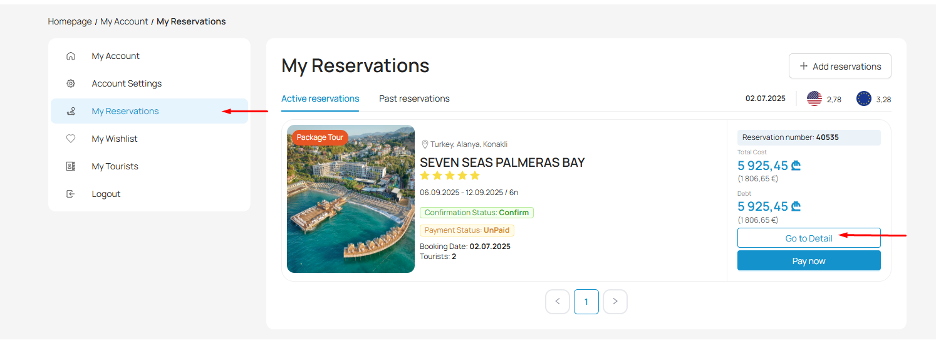
To pay for your booking - click the "Pay" button.
To upload your documents (e.g. your own insurance policy) - click "Upload your documents".
To upload your travel documents - click the "Upload travel documents" button.
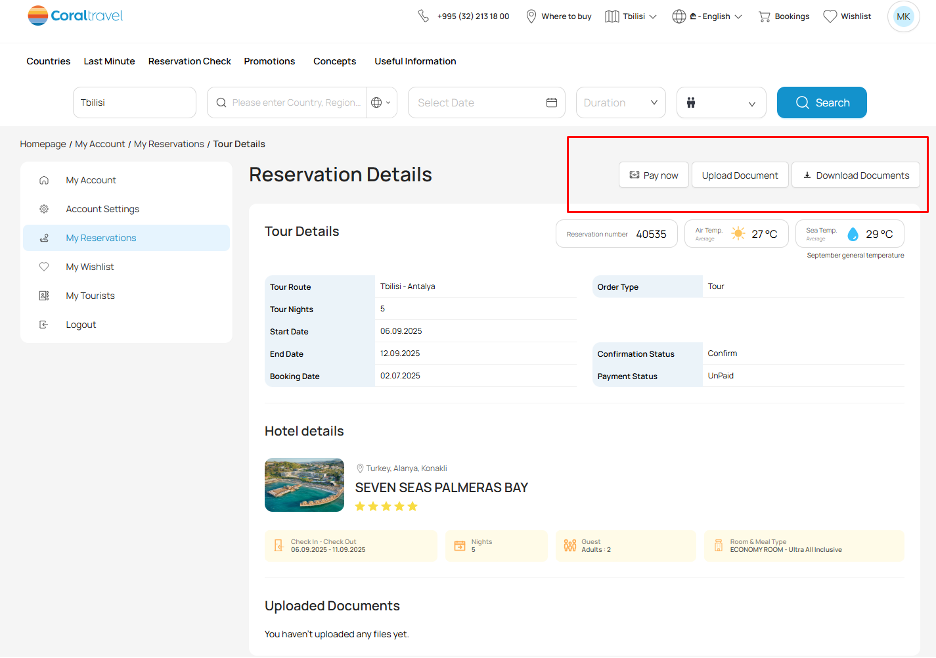
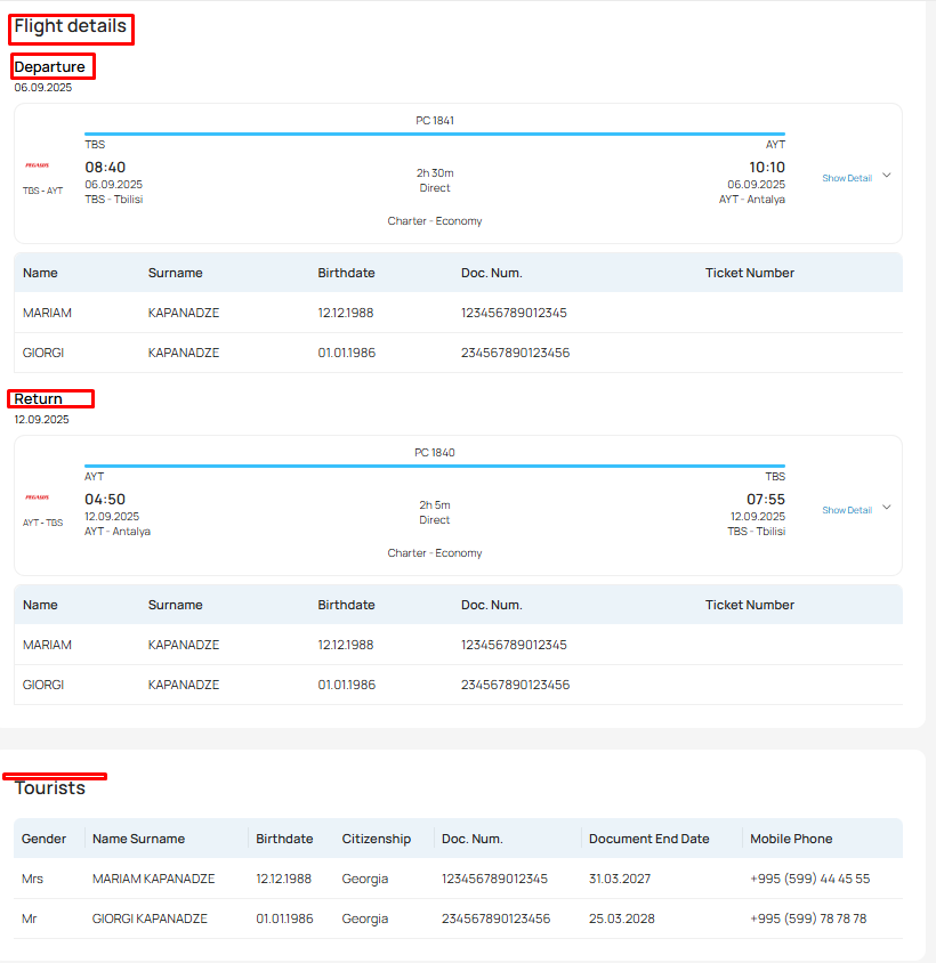
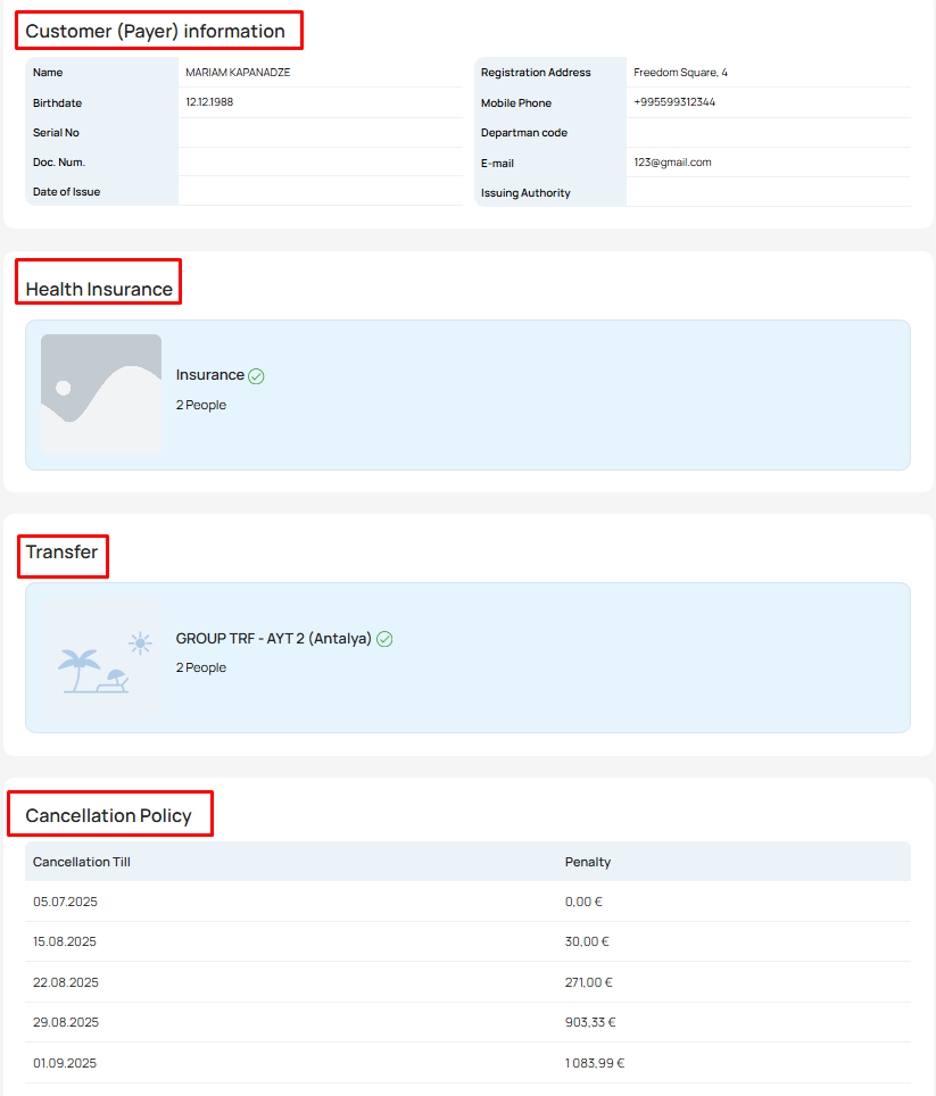
In the order details you can check:
- Flight details - section "Flight details".
- Check passport details - section "Tourists".
- Check the details of the tour customer - section "Customer information".
- Health Insurance.
STEP 12
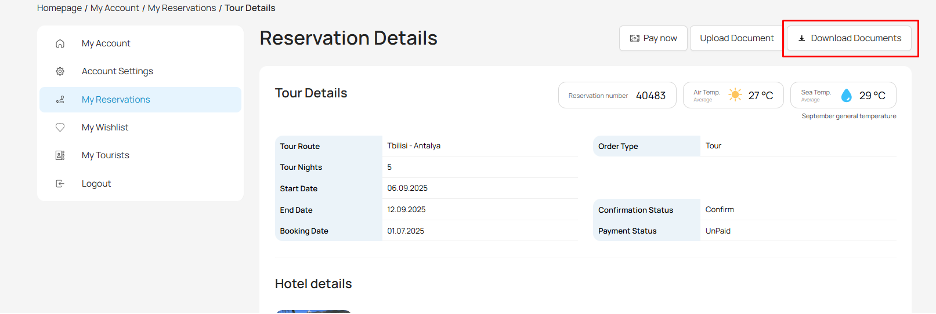
You can print travel documents in your personal cabinet on https://coral.ge website.
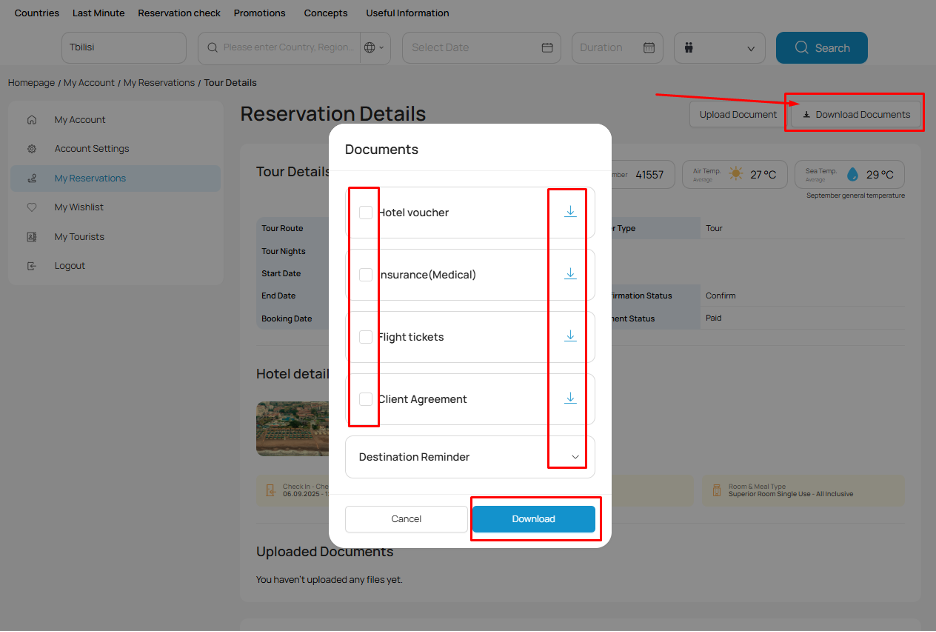
After 100% payment for the tour, in the section "My bookings" (button "More details"), you can download the travel documents - button "Download travel documents".
1. Documents available on an unpaid tour:
- Agreement on tourist services (public offer) to conclude a contract for travel services;
- Tourist Information;
- Vacation Guide.
2. Documents available after full (100%) payment for the tour:
- Agreement on tourist services (public offer) for the conclusion of the contract for tourist services;
- Tourist Information;
- Voucher for accommodation in the booked hotel;
- Flight tickets;
- Medical and insurance.
The list of documents may vary and depends on the list of booked tourist services. If the tour is booked on regular flights, in this case the ticket will be sent to the tourists by email, a few days before the start of the tour.
You can ask a question by phone or send it to the email address below:
Tel: +995 32 213 18 00
Whatsapp: +995 500 505 634
Email: tourist@coral.ge
Useful information